
Porridge+ and above · 5 CLEAR STEPS
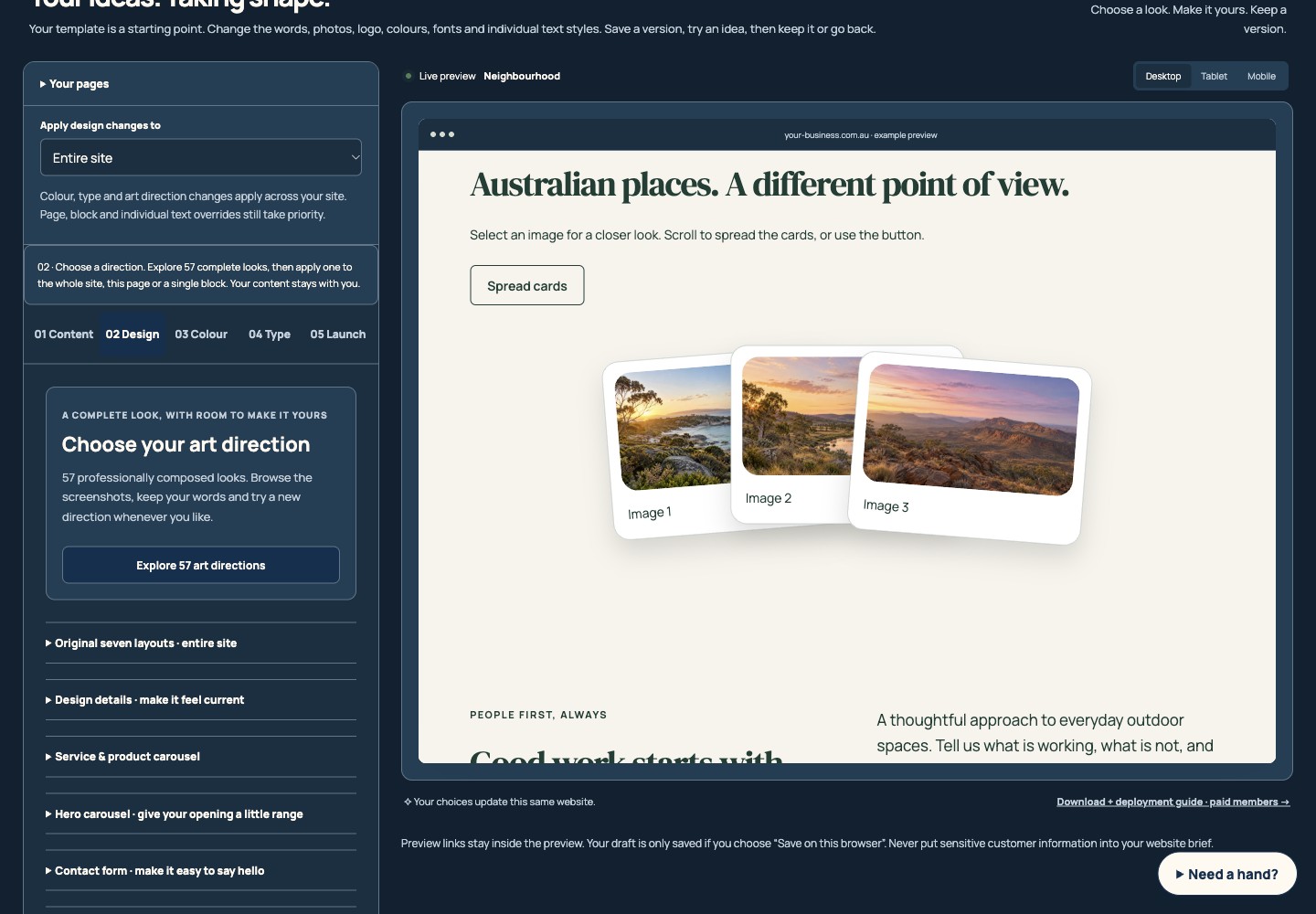
Image gallery and scroll fan
Show a small collection without losing the pictures’ proportions.
Reading this guide is free. Opening the tool needs the membership shown above. Review the monthly price before checkout.
READ IT. TRY IT. MAKE IT YOURS.
One useful step at a time.
Keep this guide beside you while you work. Complete any passwords or private details in the tool, never in a tutorial.
STEP 1 OF 5
Choose the gallery layout
In 02 Design, open Add to your website · announcement, information & gallery → Image gallery. Turn it on and choose Balanced grid, Large image and supporting cards, or Fanned image cards.
STEP 2 OF 5
Add your pictures
Add up to six JPEG, PNG or WebP images or choose a labelled starter. Aim for 1200–2000 pixels on the long edge and under 500 KB each. The maximum is 2 MB and 24 megapixels per upload; the complete project stays below 3 MB.
STEP 3 OF 5
Explain and arrange the collection
Write useful descriptions and captions, then move images into order. Keep the complete image retains portrait, square and landscape proportions. Fill the frame allows a crop; inspect the subject.
STEP 4 OF 5
Try the optional scroll fan
For Fanned image cards, enable Fan out as visitors scroll. The stack spreads through the page journey and also offers a Spread cards/Stack cards button. Keyboard focus exposes every card; reduced-motion visitors get a still open arrangement.
STEP 5 OF 5
Check each larger view
Select a picture inside the preview, check its larger view, then close it or press Escape. Test the phone layout, retain image permissions and download the website when ready.
HOW YOU KNOW IT WORKED
Check your result.
Every image is reachable, its purpose is clear, and the chosen crop does not remove something important.
If it doesn’t feel right yet.
Compress a large file in Image Prep Studio. If the project reaches its size limit, reduce the image files or the number of pictures.
Ask for a helping hand ↗Include the step and what happened. Leave passwords, keys and private customer information out.
Saved only on this browser. It is a reading reminder, not proof of completion or compliance.
Keep going at your own pace.
← All tutorialsGuide checked against the working tools on 14 October 2026. External service screens and requirements may change.