
Porridge+ and above · 5 CLEAR STEPS
Guided business setup
Start with your own facts, then choose how much guidance you need.
Reading this guide is free. Opening the tool needs the membership shown above. Review the monthly price before checkout.
READ IT. TRY IT. MAKE IT YOURS.
One useful step at a time.
Keep this guide beside you while you work. Complete any passwords or private details in the tool, never in a tutorial.
STEP 1 OF 5
Open your guided setup
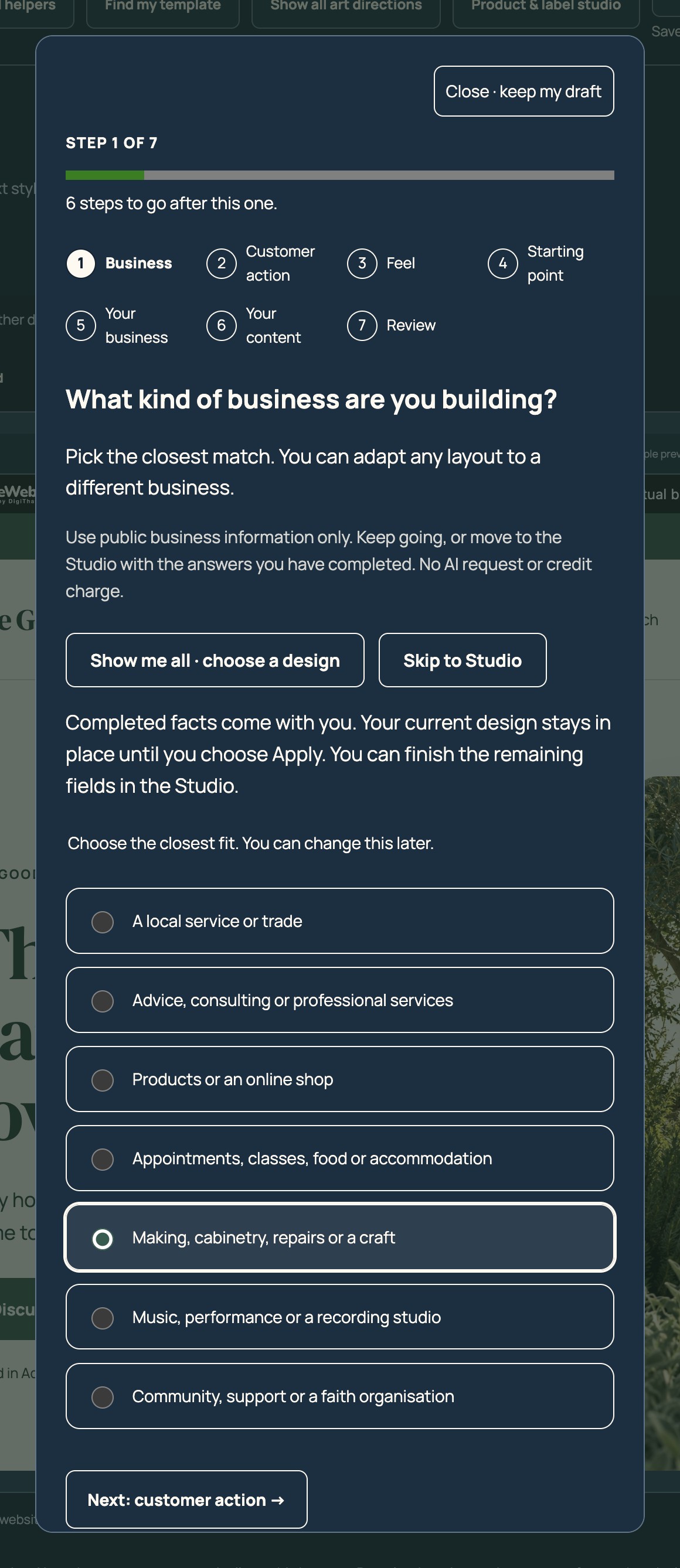
In the Studio, select Find my template. The numbered route shows all seven steps and how many remain.
STEP 2 OF 5
Choose your business and customer action
Pick the nearest business type, what visitors should do next, the feeling and your starting point. Your preferences are guidance; they do not lock your design.
STEP 3 OF 5
Add the facts you already know
Enter public business information, such as your name, offer, audience, services and genuine experience. Blank fields leave the existing content in place. No reviews or qualifications are invented.
STEP 4 OF 5
Continue when you are ready
At any step, choose Skip to Studio to carry your completed facts into the working draft, or Show me all · choose a design to carry them and browse the full collection. Your current template and art direction stay unchanged until you explicitly apply a design.
STEP 5 OF 5
Review, edit and save
Check the preview and finish any remaining fields. Completing the full quiz offers a reviewed brief and a suggested starting template. Applying that recommendation is a separate action with a restore point first.
HOW YOU KNOW IT WORKED
Check your result.
Completed facts appear in the draft and early exits preserve the selected design. The choice preferences travel in the private project settings.
If it doesn’t feel right yet.
If a restore point cannot be saved, the change stops and your answers remain in the quiz. Export a private settings backup before clearing browser data or moving devices.
Ask for a helping hand ↗Include the step and what happened. Leave passwords, keys and private customer information out.
Saved only on this browser. It is a reading reminder, not proof of completion or compliance.
Keep going at your own pace.
← All tutorialsGuide checked against the working tools on 14 October 2026. External service screens and requirements may change.